---
title: How do you enable the right APN?
description: This article explains how APN is configured end-to-end
---
[Skip to content](https://support.roscovision.com/knowledge/apn-configuration-end-to-end#main-content)
English
Show submenu for translations

- [DV6](https://roscolive.com/#dv6)
- [RoscoLive](https://roscolive.com/#rosco-live)
- [Integration Partners](https://roscolive.com/#integration-partners)
- [Why Rosco](https://roscolive.com/#why-rosco)
Open main navigation
Close main navigation
- [DV6](https://roscolive.com/#dv6)
- [RoscoLive](https://roscolive.com/#rosco-live)
- [Integration Partners](https://roscolive.com/#integration-partners)
- [Why Rosco](https://roscolive.com/#why-rosco)
- English
Show submenu for translations
- Contact us
Contact us
How can we help you?
- There are no suggestions because the search field is empty.
1. [Knowledge Base & Support Center](https://support.roscovision.com/knowledge?hsLang=en)
2. [RoscoLive Installer App](https://support.roscovision.com/knowledge/roscolive-installer-app?hsLang=en)
3. [User Guide](https://support.roscovision.com/knowledge/roscolive-installer-app?hsLang=en#user-guide)
# How do you enable the right APN?
## This article explains how to select a right APN for custom or AT&T SIM cards during the installation process of the device.
#### Process Overview
###### 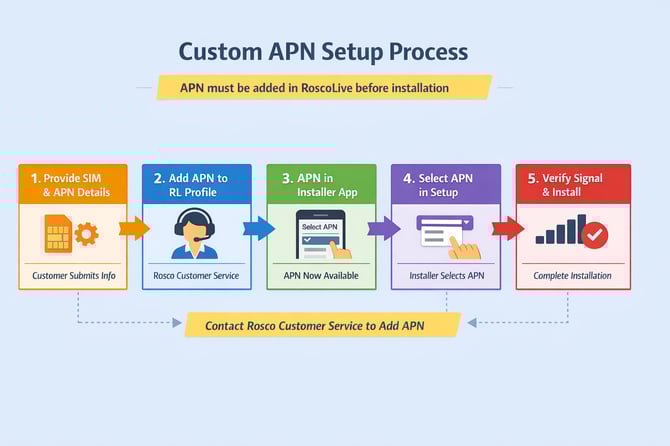
###### **Important:** If you plan to use a custom (BYOD) SIM card or an AT&T SIM card for 4G connectivity on DV4 or DV6 devices, please contact Rosco Customer Service with your SIM card and APN details before installation. The APN must be added to your company profile in RoscoLive (RL), so it appears in the Installer App drop-down list. Once the APN has been added to your company profile, it will be available for all future installations.
Once the Rosco team has added the required APN to your fleet profile, follow the steps below in the Installer App to select the correct APN for your fleet.
- Open the Installer App and sign in.
- Proceed with the installation workflow and pair your mobile device with the unit.
- For Verizon, T-Mobile, and Bell SIM card customers, verify on the "Network Settings" page that the Network APN is set to "Rosco SIM”" and the Network Signal Strength is shown as "Strong".
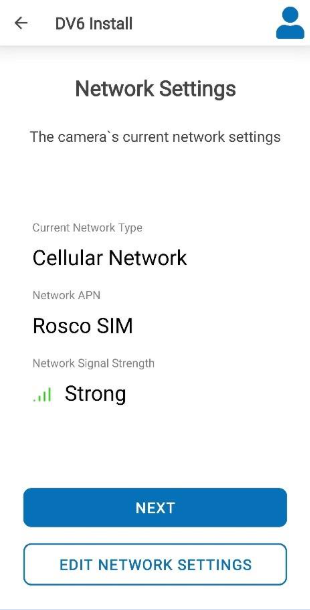
- If you are using an AT&T SIM card or a custom (BYOD) SIM card, select "Edit Network Settings" to view the APN options available for your company.
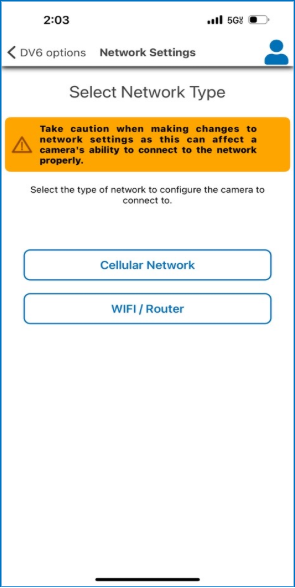
- Select the network type - either Cellular or Wi-Fi.
- Cellular (required for APN selection)
- Wi-Fi (if installing in a fixed location with stable Wi-Fi access - Not applicable for APN selection)
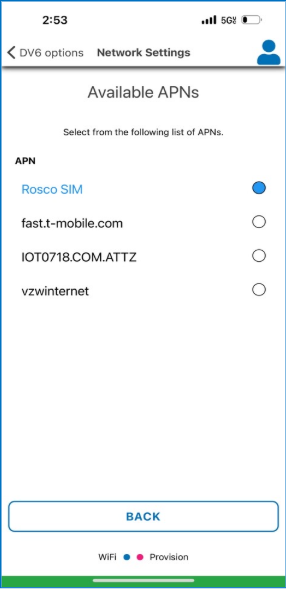
- Under the Cellular option, you’ll see a list of available APN configurations if it's already added on your fleet settings by our Support team member.
- Select the APN that is configured on your RoscoLive profile.
The APNs shown in the screenshot below are provided forillustrative purposes only.
- **AT&T SIM card users must select the APN that begins with “IOT0718.COM.ATTZ".**
- Verizon, T-Mobile, and Bell customers do not require a custom APN to be added or selected from the drop-downdown list; these carriers can connect to the Rosco SIM automatically during installation. If the Network Signal Strength is not shown as "Strong" or the APN field is blank on the home page of the Network Settings screen, then reselect "Rosco SIM" from the screenshot below to restore the network connection to the device.
### Important Notes:
- The APN must already be added to your company profile on RoscoLive (RL).
- Only APNs configured in RL will appear in the Installer App.
- Fleet Managers and partners cannot add APNs directly.
- Only Rosco Customer Service Representatives can add custom APNs in RL.
If you are using an AT&T SIM card or a custom (BYOD) SIM card and no APN appears in the list:
1. Do not proceed with installation.
2. Contact Customer Service with:
- SIM card provider
- APN string
- Any additional carrier configuration details if any.
Once Customer Service adds the APN in RL:
- It will automatically populate in the Installer App drop-down.
- It can be reused for future installs without repeated setup.
- [RoscoLive](https://support.roscovision.com/knowledge/roscolive?hsLang=en#main-content)
- [Developer Resources](https://support.roscovision.com/knowledge/roscolive?hsLang=en#developer-resources)
- [Guides](https://support.roscovision.com/knowledge/roscolive?hsLang=en#guides)
- [Releases & Announcements](https://support.roscovision.com/knowledge/roscolive?hsLang=en#releases-announcements)
- [RoscoLive-Geotab](https://support.roscovision.com/knowledge/roscolive-geotab?hsLang=en#main-content)
- [Release Notes](https://support.roscovision.com/knowledge/roscolive-geotab?hsLang=en#release-notes)
- [User Guides](https://support.roscovision.com/knowledge/roscolive-geotab?hsLang=en#user-guides)
- [360AHD](https://support.roscovision.com/knowledge/360ahd?hsLang=en#main-content)
- [Quick Start Guide](https://support.roscovision.com/knowledge/360ahd?hsLang=en#quick-start-guide)
- [User Manual](https://support.roscovision.com/knowledge/360ahd?hsLang=en#user-manual)
- [RoscoLive Installer App](https://support.roscovision.com/knowledge/roscolive-installer-app?hsLang=en#main-content)
- [Release Notes](https://support.roscovision.com/knowledge/roscolive-installer-app?hsLang=en#release-notes)
- [User Guide](https://support.roscovision.com/knowledge/roscolive-installer-app?hsLang=en#user-guide)
- [Installer Certification Knowledge Base](https://support.roscovision.com/knowledge/roscolive-installer-app?hsLang=en#installer-certification-knowledge-base)
- [DV6 Dash Cam](https://support.roscovision.com/knowledge/dv6-dash-cam?hsLang=en#main-content)
- [User Manual](https://support.roscovision.com/knowledge/dv6-dash-cam?hsLang=en#user-manual)
- [Specifications](https://support.roscovision.com/knowledge/dv6-dash-cam?hsLang=en#specifications)
- [Brochure](https://support.roscovision.com/knowledge/dv6-dash-cam?hsLang=en#brochure)
- [Install Guide](https://support.roscovision.com/knowledge/dv6-dash-cam?hsLang=en#install-guide)
- [Quick Start Guides](https://support.roscovision.com/knowledge/dv6-dash-cam?hsLang=en#quick-start-guides)
- [DV7 Dash Cam](https://support.roscovision.com/knowledge/dv7-dash-cam?hsLang=en#main-content)
- [Quick Start Guides](https://support.roscovision.com/knowledge/dv7-dash-cam?hsLang=en#quick-start-guides)
- [Driver ID](https://support.roscovision.com/knowledge/driver-id?hsLang=en)
- [Asset Tracker](https://support.roscovision.com/knowledge/asset-tracker?hsLang=en)
- [DV-Pro5 Player](https://support.roscovision.com/knowledge/dv-pro5-player?hsLang=en)
- [DVXC4 Dash Cam](https://support.roscovision.com/knowledge/dvxc4-dash-cam?hsLang=en#main-content)
- [Brochure](https://support.roscovision.com/knowledge/dvxc4-dash-cam?hsLang=en#brochure)
- [Quick Start Guide](https://support.roscovision.com/knowledge/dvxc4-dash-cam?hsLang=en#quick-start-guide)
- [Specifications](https://support.roscovision.com/knowledge/dvxc4-dash-cam?hsLang=en#specifications)
- [Installation](https://support.roscovision.com/knowledge/dvxc4-dash-cam?hsLang=en#installation)
- [Firmware Upgrade](https://support.roscovision.com/knowledge/dvxc4-dash-cam?hsLang=en#firmware-upgrade)
- [Troubleshooting](https://support.roscovision.com/knowledge/dvxc4-dash-cam?hsLang=en#troubleshooting)
- [User Manuals](https://support.roscovision.com/knowledge/dvxc4-dash-cam?hsLang=en#user-manuals)
- [Contact Us](https://support.roscovision.com/knowledge/contact-us?hsLang=en)
- [Troubleshooting Guides](https://support.roscovision.com/knowledge/troubleshooting-guides?hsLang=en)
- [DV6](https://roscolive.com/#dv6)
- [RoscoLive](https://roscolive.com/#rosco-live)
- [Integration Partners](https://roscolive.com/#integration-partners)
- [Why Rosco](https://roscolive.com/#why-rosco)
[](https://www.roscovision.com)
[mailto:email@email.com](mailto:email@email.com)
Copyright © 2025, Rosco Vision