✨New Features
Zones (Geofencing)
The Zones feature lets you create geofenced areas and automatically track when vehicles enter or exit them in near real time.
Interested in Zones?
The Zones feature can be enabled for your company upon request. If you're interested in learning more or enabling this feature, please contact our Sales team at videomatics@roscovision.com.
Why this matters:
Zones help you:
-
Validate driver shift times based on actual vehicle movement
-
Reduce reliance on self-reported logs
-
Support payroll and compliance reporting
-
Gain insight into yard usage and dwell times
-
Improve visibility into vehicle activity across multiple locations
Viewing Zones
-
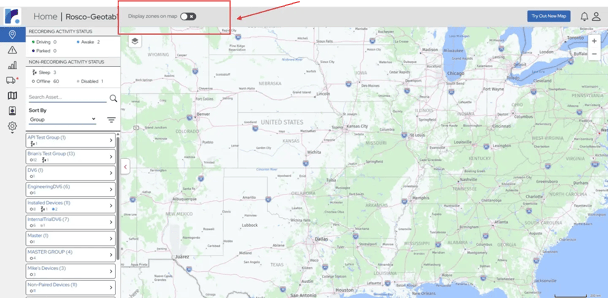
From the homepage map, enable Zones using the “Display Zones on Map” toggle.
-
When enabled:
-
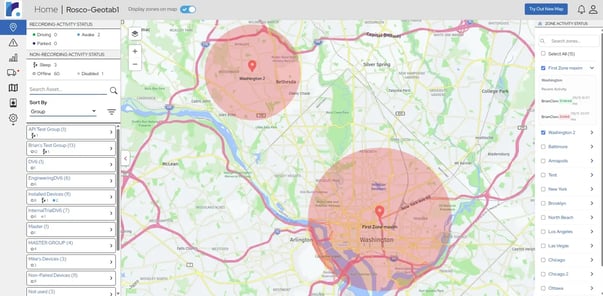
Zones appear as circular overlays on the map.
-
The right-hand panel lists all zones (or shows empty if no zones exist).
-
Selecting a zone displays a snapshot of the 10 most recent vehicle entry/exit events.
-
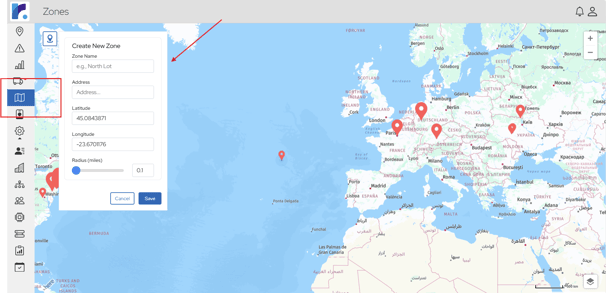
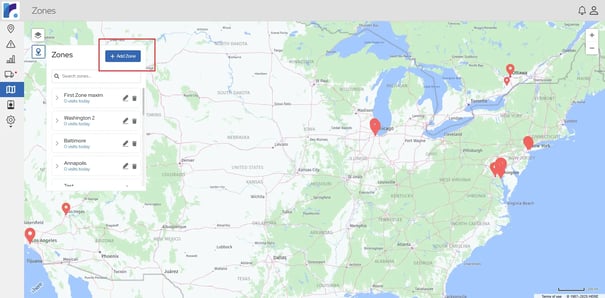
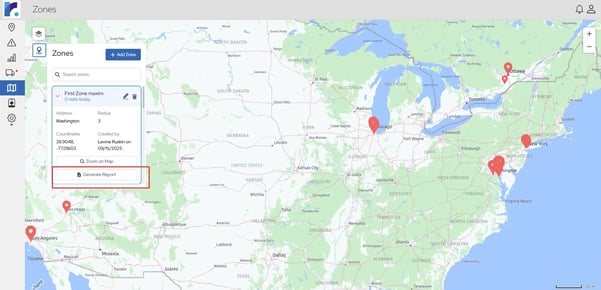
- A dedicated Zones page allows users to easily create and manage zones.
- By clicking “Create Zone,” a modal opens where users can enter a required zone name, address, and radius (ranging from 0.1 to 5 miles), with latitude and longitude automatically populated but still editable.
- The modal also includes convenient actions like zooming to the zone on the map, viewing related reports, editing details, or deleting the zone.
- To improve usability, the modal can be collapsed, giving users more space to interact with the map.
Entry/Exit Logic
-
Vehicles are not assigned to specific zones in Phase 1 - all zones apply globally
-
Entry Event: When a vehicle enters the circular geofence boundary
-
Exit Event: When a vehicle leaves the circular geofence boundary
-
2-Minute Minimum Duration: Vehicles must remain in the zone for at least 2 minutes to avoid false positives
Reporting
-
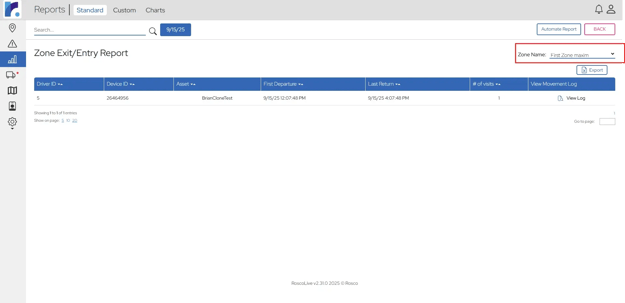
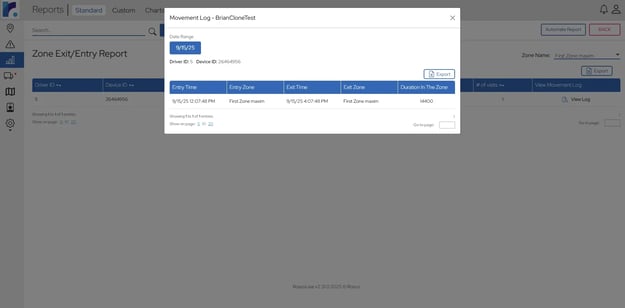
The Zone Exit/Entry Report lets you review vehicle activity for each zone.
-
Reports can be exported on demand or automated (daily, weekly, bi-weekly, or monthly).
🛠️ Improvements
Seamless Playback When Combining Driving and Parking Videos
We’ve improved how videos are generated when combining segments from different recording modes in a Custom Video Request. Previously, joining driving and parking mode footage could sometimes cause playback glitches due to differences in frame rates. With these improvements, combined videos now play smoothly, providing a more seamless viewing experience when reviewing footage.
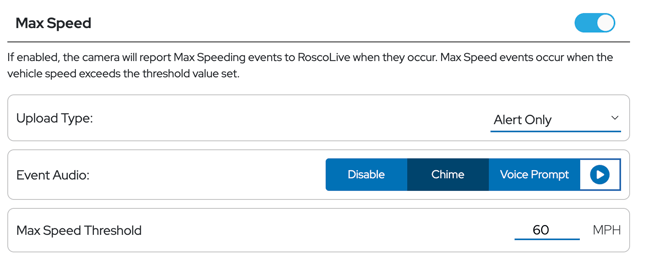
Play Button on Event Audio Settings
An audio preview control has been added to Event Settings so users can hear the selected chime or voice prompt before saving their configuration. This makes it easier to confirm that the correct audio alert is selected for drivers.
-
Play the selected chime or voice prompt directly from the Profile Settings page
-
Quickly test the configuration to understand exactly what the driver will hear
SD Card Capacity and Recording Hours
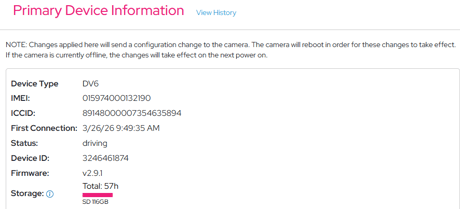
To improve transparency and reduce troubleshooting effort, RoscoLive now displays additional storage information for devices.
-
View SD card capacity directly in the Primary Device Information section
-
See the total number of available recording hours for the device
-
Access this information on the Asset Settings page
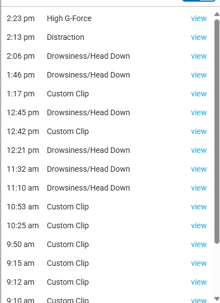
Infinite Scrolling on Home Page - Events Panel
The Events Panel on the Home page now supports infinite scrolling, making it easier to browse through large numbers of recorded videos. No longer restricted by the “See More” option when reviewing footage